

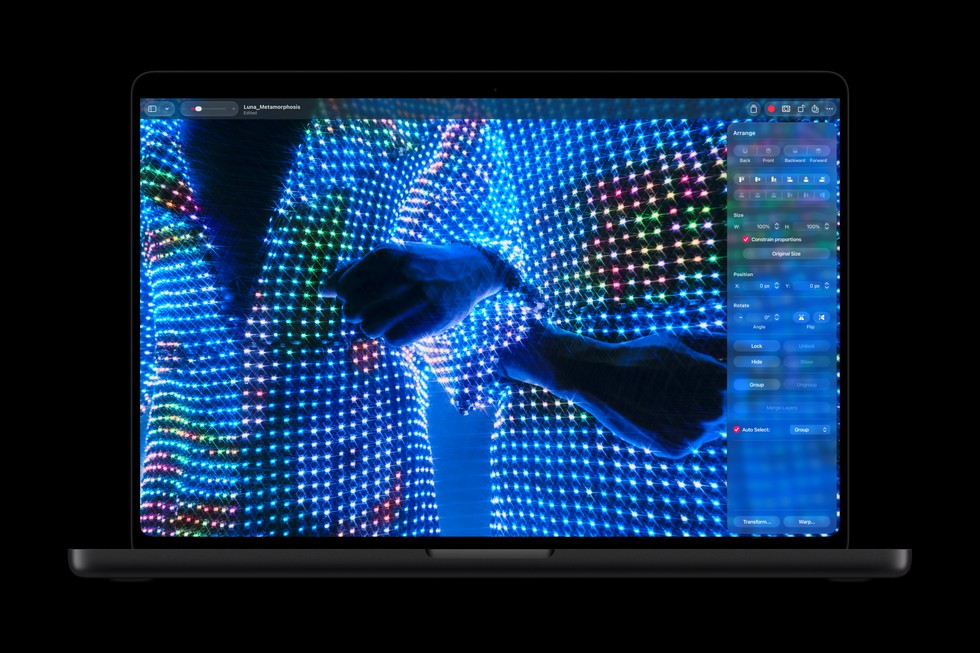
Apple has published a support document explaining how the illuminated Apple logo on the new MacBook Pro with PROLED XDR Display works, and how owners who would rather not have it glowing can switch it off.
According to the document, the logo on the back of the display is lit whenever the Mac is awake. It adjusts automatically, following both the brightness of the built-in screen and the lighting conditions picked up by the computer's ambient light sensor. Apple says that at every screen-brightness setting, the logo will look dimmer in a dim room and brighter in a bright one. The company lists the feature as specific to the MacBook Pro with PROLED XDR Display.
There is no toggle in System Settings that the support page mentions. Instead, Apple points users to Terminal, found in the Utilities folder inside Applications or through Spotlight. Entering the command sudo defaults write com.apple.CoreBrightness LEBacklightMode -int 0 and typing an administrator password turns the illumination off immediately, so the logo stays dark in all lighting conditions.
Apple adds several details about how that setting behaves. The change applies to every macOS user account on the machine, including when the Mac starts up from macOS Recovery. If someone migrates to a new Mac, the setting transfers along with their data. Reinstalling macOS switches the illumination back on.
To restore the glow manually, the document says to run sudo defaults delete com.apple.CoreBrightness LEBacklightMode in Terminal.
The support article was published on November 5, the same week the new MacBook Pro models began reaching customers. 9to5Mac, which first drew attention to the document, also noted a post from developer Guilherme Rambo describing the logo as software-controllable and tied to the CoreBrightness system component. That claim comes from Rambo rather than from Apple.
Early reviews of the new laptops have discussed the glowing logo as one of the more visible changes to the lid. As always with Terminal commands that modify system defaults, owners should follow Apple's instructions exactly and use an administrator account.
Apple's support document is the authoritative reference for the steps, and it is available on the company's support site.
0 comments